

Written by Allen Wyatt (last updated January 3, 2026)
This tip applies to Word 2007, 2010, 2013, 2016, 2019, and 2021
At work every day Robert is required to research media articles, copying and pasting anything relevant to his department into a Word document. Recently, after pasting a specific article, all the text appeared as hollow squares. This is a first for Robert; he wonders why the text would appear this way when the original source is in legible English.
Virtually every time you see the small squares instead of characters, it means that your document (or at least the portion that you pasted) is using a font that is not installed on your system. Short of figuring out what that font is and installing it, there are a couple of immediate solutions.
First, if you've already pasted the information, then select it and press Ctrl+Space Bar. This resets the selected characters so that they use the font defined in the underlying style. Since you are pasting from a Web page, in most cases this means that the underlying style is the Normal style, and you should be able to immediately see the letters.
If this doesn't work, it means that whatever you pasted is using a different style where the font defined in the style is one you don't have installed. In this case, with the text selected simply pick a different font using the tools on the Home tab of the ribbon.
If you haven't pasted your text yet, but you've already copied it from the source, then place the insertion point where you want to paste and click the down-arrow next to or under the Paste tool on the Home tab of the ribbon. You'll see some options (they can vary for a variety of reasons), but you want to pick the Keep Text Only option. (See Figure 1.)
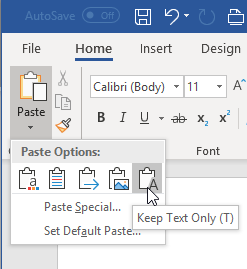
Figure 1. Choosing a pasting option.
If you cannot find the right option—the one that results in only text being pasted, not formatting—you can always choose the Paste Special option, which displays the Paste Special dialog box. (See Figure 2.)
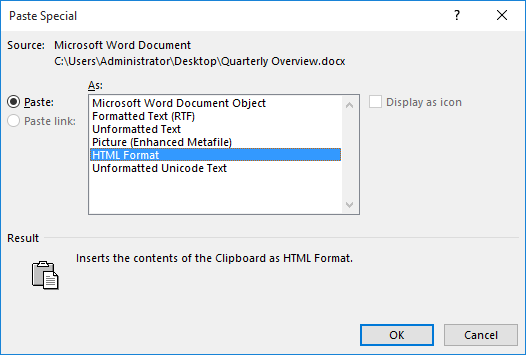
Figure 2. The Paste Special dialog box.
Again, the options available in the Paste Special dialog box will vary from system to system, but you want the Unformatted Text option. That will paste just the text, and you won't see the hollow squares in what you paste.
WordTips is your source for cost-effective Microsoft Word training. (Microsoft Word is the most popular word processing software in the world.) This tip (1590) applies to Microsoft Word 2007, 2010, 2013, 2016, 2019, and 2021.

Discover the Power of Microsoft Office This beginner-friendly guide reveals the expert tips and strategies you need to skyrocket your productivity and use Office 365 like a pro. Mastering software like Word, Excel, and PowerPoint is essential to be more efficient and advance your career. Simple lessons guide you through every step, providing the knowledge you need to get started. Check out Microsoft Office 365 For Beginners today!
One of the most overlooked shortcut keys in Word has to be the extend key. Yet, learning how to use this simple key can ...
Discover MoreNon-breaking hyphens can come in handy for some types of writing. They force the words (or characters) on both sides of ...
Discover MoreIf you inadvertently move to the end of the document, you might be wondering how to get your insertion point back to ...
Discover MoreFREE SERVICE: Get tips like this every week in WordTips, a free productivity newsletter. Enter your address and click "Subscribe."
There are currently no comments for this tip. (Be the first to leave your comment—just use the simple form above!)
Got a version of Word that uses the ribbon interface (Word 2007 or later)? This site is for you! If you use an earlier version of Word, visit our WordTips site focusing on the menu interface.
Visit the WordTips channel on YouTube

FREE SERVICE: Get tips like this every week in WordTips, a free productivity newsletter. Enter your address and click "Subscribe."
Copyright © 2026 Sharon Parq Associates, Inc.
Comments