

Written by Allen Wyatt (last updated January 10, 2026)
This tip applies to Word 2007, 2010, 2013, 2016, 2019, 2021, 2024, and Word in Microsoft 365
When Helena receives a document for editing, she likes to ensure that all of the quotes and apostrophes are of a consistent type. In other words, she likes to ensure that they are either smart or straight, not a mix of the two. Helena wonders if there is an easy way to do this for an entire document.
Perhaps the easiest way to do this is to use Find and Replace. Before taking that step, though, you need to make sure that Word is set to use the type of quotes you prefer:
Figure 1. The AutoFormat As You Type tab of the AutoCorrect dialog box.
Now you are ready to do your Find and Replace operation:
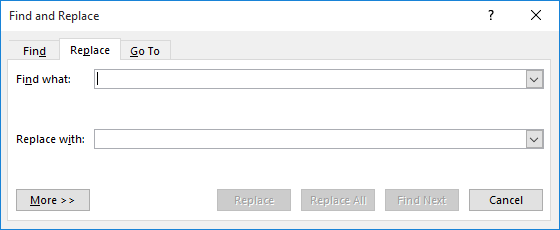
Figure 2. The Replace tab of the Find and Replace dialog box.
At this point your quotes should be consistent throughout the entire document. If you want to make the change even more automatic, you can record a macro that performs all of these steps. Then, assign a shortcut key to the macro, and you can do it all with the shortcut.
One thing you might notice is that in the AutoCorrect dialog box there is also an AutoFormat tab, in addition to the AutoFormat As You Type tab. The settings on the AutoFormat tab are largely the same as those on the AutoFormat As You Type tab, meaning that you can find a "Straight Quotes with Smart Quotes" check box on both tabs. The steps in this tip directed you to only make a change on the AutoFormat As You Type tab because testing has shown that it is only the setting on this tab that affects Find and Replace, not the setting on the AutoFormat tab.
WordTips is your source for cost-effective Microsoft Word training. (Microsoft Word is the most popular word processing software in the world.) This tip (10414) applies to Microsoft Word 2007, 2010, 2013, 2016, 2019, 2021, 2024, and Word in Microsoft 365.
The First and Last Word on Word! Bestselling For Dummies author Dan Gookin puts his usual fun and friendly candor back to work to show you how to navigate Word 2019. Spend more time working and less time trying to figure it all out! Check out Word 2019 For Dummies today!
Need to find all the instances of a particular word and change the formatting of those instances? It's easy to do using ...
Discover MoreIn order to provide a finishing touch to your document, you may want to replace mundane X marks with fancier check marks. ...
Discover MoreWant to change the order of the day and month in a date? This tip shows you how you can do so using the Find and Replace ...
Discover MoreFREE SERVICE: Get tips like this every week in WordTips, a free productivity newsletter. Enter your address and click "Subscribe."
2026-01-12 09:37:52
Andrew
Other things to consider:
• Consider turning off the tracking of changes so that these changes are not marked. (I for one consider these replacements to constitute nonsubstantive formatting updates).
• Turn off the display of existing tracked changes, otherwise, quotes within text already marked as deleted will be updated to a non-deleted quotes (even if they were already of the correct type).
Andy.
2026-01-12 08:45:20
Malcolm Patterson
Those of us who are often dealing with quantities expressed in feet and inches must be careful not to change the prime (used in lieu of the symbol "ft") or the double prime (used in lieu of the symbol "in."). The same problem exists for expressions of a plane angle in degrees, minutes, and seconds. It's usually easier to change all quotation marks to "smart quotes" as described, then to change all the symbols used in quantities back to prime and double prime.
This can be accomplished with the wildcard search to find instances where the closing quotation mark follows a numeral rather than a letter or punctuation mark. There are, unfortunately, still cases where human editorial intervention is needed, as when a quotation happens to end in a numeral or when a user has expressed a decimal quantity incorrectly by supplying a decimal point but no numeral in the tenths place.
Got a version of Word that uses the ribbon interface (Word 2007 or later)? This site is for you! If you use an earlier version of Word, visit our WordTips site focusing on the menu interface.
Visit the WordTips channel on YouTube

FREE SERVICE: Get tips like this every week in WordTips, a free productivity newsletter. Enter your address and click "Subscribe."
Copyright © 2026 Sharon Parq Associates, Inc.
Comments