

Written by Allen Wyatt (last updated January 31, 2026)
This tip applies to Word 2007, 2010, 2013, 2016, 2019, 2021, 2024, and Word in Microsoft 365
Keryn works at a bilingual university and often has English and Spanish mixed together in the same document. She has to manually select the text and set to review in Spanish. This can be very time consuming. Keryn wonders if there is a way to tell Word to review in two languages, by default. She knows this can increase the likelihood of spelling errors but it would be easier, for her, than selecting and setting languages over and over again.
Word cannot, by default, review in two different languages. As Keryn has discovered, you need to do something in order to tell Word what should be checked in which language. Once that specification is done, then Word can do the review in a single pass.
You can make the "specifying" process easier if you use styles in your document. Language (such as English or Spanish) is an attribute you can specify in a style. So, for instance, you could create a character style named something like "Spanish Text" and make sure that the style definition has the language for that style set to Spanish. Here are the steps to do that:
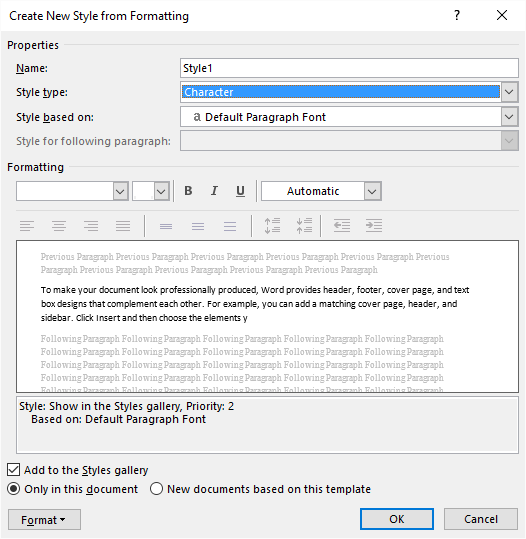
Figure 1. The Create New Style from Formatting dialog box.
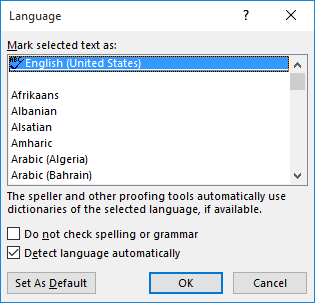
Figure 2. The Language dialog box.
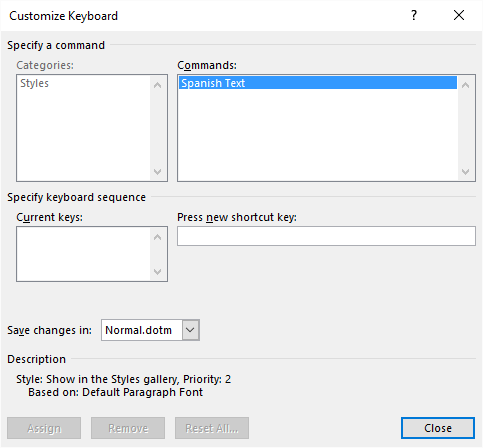
Figure 3. The Customize Keyboard dialog box.
You've now created the style you want to use for your Spanish text. You would then apply that style to any words you type in Spanish, and Word would take care of doing the spelling and grammar checks appropriately. If you defined a shortcut key for the style (steps 9 through 12) then you can use the shortcut key to apply the style to whatever text you selected.
The bottom line is that it is much easier to apply a style to selected text than it is to continually change the Language setting for selected text.
WordTips is your source for cost-effective Microsoft Word training. (Microsoft Word is the most popular word processing software in the world.) This tip (13441) applies to Microsoft Word 2007, 2010, 2013, 2016, 2019, 2021, 2024, and Word in Microsoft 365.

Do More in Less Time! An easy-to-understand guide to the more advanced features available in the Microsoft 365 version of Word. Enhance the quality of your documents and boost productivity in any field with this in-depth resource. Complete your Word-related tasks more efficiently as you unlock lesser-known tools and learn to quickly access the features you need. Check out Microsoft 365 Word For Professionals For Dummies today!
Wouldn't it be great if Word had a conditional formatting capability? Unfortunately, it doesn't, but there are some ...
Discover MoreStyles are a powerful formatting tool for the text in your documents. Once you've created styles that describe how you ...
Discover MoreIf you use styles to format your text, you can later search for words and phrases that are formatted using various ...
Discover MoreFREE SERVICE: Get tips like this every week in WordTips, a free productivity newsletter. Enter your address and click "Subscribe."
There are currently no comments for this tip. (Be the first to leave your comment—just use the simple form above!)
Got a version of Word that uses the ribbon interface (Word 2007 or later)? This site is for you! If you use an earlier version of Word, visit our WordTips site focusing on the menu interface.
Visit the WordTips channel on YouTube

FREE SERVICE: Get tips like this every week in WordTips, a free productivity newsletter. Enter your address and click "Subscribe."
Copyright © 2026 Sharon Parq Associates, Inc.
Comments