
Please Note: This article is written for users of the following Microsoft Word versions: 2007, 2010, 2013, 2016, 2019, and 2021. If you are using an earlier version (Word 2003 or earlier), this tip may not work for you. For a version of this tip written specifically for earlier versions of Word, click here: Adding Borders to Paragraphs.

Written by Allen Wyatt (last updated July 5, 2024)
This tip applies to Word 2007, 2010, 2013, 2016, 2019, and 2021
Word allows you to quickly and easily add different types of borders to your paragraphs. You can add borders to any or all sides of a paragraph, or you can create a drop-shadow effect. (Drop shadows cause your boxed paragraphs to "stand off" the page, providing almost a three-dimensional appearance.) To add borders to your paragraph, follow these steps:
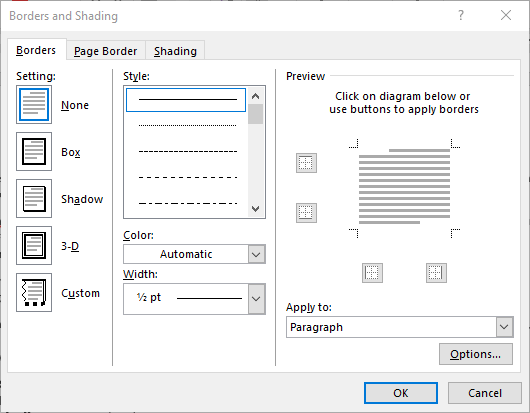
Figure 1. The Borders tab of the Borders and Shading dialog box.
You can quickly remove a paragraph border by selecting None in the Borders and Shading dialog box or No Border from the drop-down list displayed in step 2.
After you set border attributes, Word will continue to use the same attributes until you change them again. This makes picking choices from the drop-down list easier.
Note the caveat shown in step 1—if you select multiple paragraphs, then the border is applied to each individual paragraph in your selection. If you, instead, are looking for a way to apply a border around the outside of a group of paragraphs, you'll need to use a workaround. Either of the following will do:
Either of these workarounds will take a bit of testing and practice to get exactly the effect you want.
WordTips is your source for cost-effective Microsoft Word training. (Microsoft Word is the most popular word processing software in the world.) This tip (8698) applies to Microsoft Word 2007, 2010, 2013, 2016, 2019, and 2021. You can find a version of this tip for the older menu interface of Word here: Adding Borders to Paragraphs.
Learning Made Easy! Quickly teach yourself how to format, publish, and share your content using Word 2021 or Microsoft 365. With Step by Step, you set the pace, building and practicing the skills you need, just when you need them! Check out Microsoft Word Step by Step today!
With your page border in place, you might be surprised if you don't see one side of the border (or all sides) print out ...
Discover MoreWhen you use fields in your document, you may want them to not change from a particular displayed result. You can lock ...
Discover MoreWord allows you to quickly add borders to cells in a table, but you may not know that you can also add borders to the ...
Discover MoreFREE SERVICE: Get tips like this every week in WordTips, a free productivity newsletter. Enter your address and click "Subscribe."
There are currently no comments for this tip. (Be the first to leave your comment—just use the simple form above!)
Got a version of Word that uses the ribbon interface (Word 2007 or later)? This site is for you! If you use an earlier version of Word, visit our WordTips site focusing on the menu interface.
Visit the WordTips channel on YouTube

FREE SERVICE: Get tips like this every week in WordTips, a free productivity newsletter. Enter your address and click "Subscribe."
Copyright © 2026 Sharon Parq Associates, Inc.
 Please Note:
This article is written for users of the following Microsoft Word versions: 2007, 2010, 2013, 2016, 2019, and 2021. If you are using an earlier version (Word 2003 or earlier), this tip may not work for you. For a version of this tip written specifically for earlier versions of Word, click here:
Please Note:
This article is written for users of the following Microsoft Word versions: 2007, 2010, 2013, 2016, 2019, and 2021. If you are using an earlier version (Word 2003 or earlier), this tip may not work for you. For a version of this tip written specifically for earlier versions of Word, click here:
Comments