
Please Note: This article is written for users of the following Microsoft Word versions: 2007, 2010, 2013, 2016, 2019, 2021, 2024, and Word in Microsoft 365. If you are using an earlier version (Word 2003 or earlier), this tip may not work for you. For a version of this tip written specifically for earlier versions of Word, click here: Creating a Hyperlink to a Specific Page.

Written by Allen Wyatt (last updated April 1, 2026)
This tip applies to Word 2007, 2010, 2013, 2016, 2019, 2021, 2024, and Word in Microsoft 365
Word allows you to easily create hyperlinks from one document to another. What if you want to create a hyperlink to a specific page in another document, however?
You can't specify a page number in a hyperlink; Word provides no way to do it. You can, however, create a hyperlink to a bookmark in another document. Follow these steps:
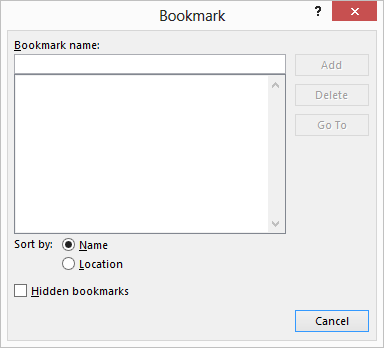
Figure 1. The Bookmark dialog box.
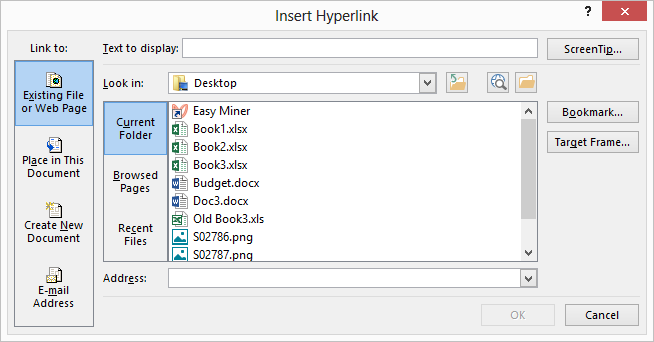
Figure 2. The Insert Hyperlink dialog box.
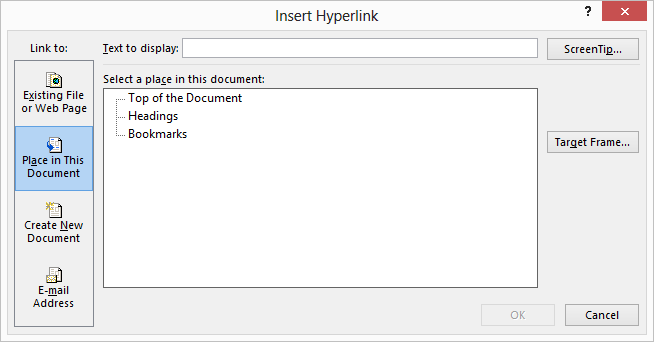
Figure 3. The Select Place in Document dialog box.
That's it. If you click the hyperlink in document A, document B should be displayed on the page you want.
There is one thing to remember about this approach. How Word pages its documents depends on a lot of variables. For instance, if you insert the bookmark at the beginning of page seven of document B, and then you later do editing of the document that affects the paging, the bookmark will no longer be at the top of page seven. The upshot: If you change the paging in document B, make sure you move the bookmark to the correct position for the page you want to display.
WordTips is your source for cost-effective Microsoft Word training. (Microsoft Word is the most popular word processing software in the world.) This tip (9857) applies to Microsoft Word 2007, 2010, 2013, 2016, 2019, 2021, 2024, and Word in Microsoft 365. You can find a version of this tip for the older menu interface of Word here: Creating a Hyperlink to a Specific Page.
The First and Last Word on Word! Bestselling For Dummies author Dan Gookin puts his usual fun and friendly candor back to work to show you how to navigate Word 2019. Spend more time working and less time trying to figure it all out! Check out Word 2019 For Dummies today!
Word allows you to easily add hyperlinks to your documents. These links can be to either a bookmark within your document ...
Discover MoreWord allows you to link one document to another document rather easily. If you later want to grab the contents of a ...
Discover MoreIt's easy to create and include links in your documents to other sources, in and out of Word. There are some limitations ...
Discover MoreFREE SERVICE: Get tips like this every week in WordTips, a free productivity newsletter. Enter your address and click "Subscribe."
There are currently no comments for this tip. (Be the first to leave your comment—just use the simple form above!)
Got a version of Word that uses the ribbon interface (Word 2007 or later)? This site is for you! If you use an earlier version of Word, visit our WordTips site focusing on the menu interface.
Visit the WordTips channel on YouTube

FREE SERVICE: Get tips like this every week in WordTips, a free productivity newsletter. Enter your address and click "Subscribe."
Copyright © 2026 Sharon Parq Associates, Inc.
 Please Note:
This article is written for users of the following Microsoft Word versions: 2007, 2010, 2013, 2016, 2019, 2021, 2024, and Word in Microsoft 365. If you are using an earlier version (Word 2003 or earlier), this tip may not work for you. For a version of this tip written specifically for earlier versions of Word, click here:
Please Note:
This article is written for users of the following Microsoft Word versions: 2007, 2010, 2013, 2016, 2019, 2021, 2024, and Word in Microsoft 365. If you are using an earlier version (Word 2003 or earlier), this tip may not work for you. For a version of this tip written specifically for earlier versions of Word, click here:
Comments