
Courtney edits academic articles for a scholarly journal, and references to sources often list ranges of pages in the source article. Authors will invariably separate these ranges with a hyphen. Courtney needs to change all of these to en dashes, but she cannot use Find and Replace because hyphens can be used in lots of valid places in the articles. She wonders if there is an automated approach to affect just the hyphens in page ranges.
Actually, Find and Replace is the best way to handle this need. Follow these steps:
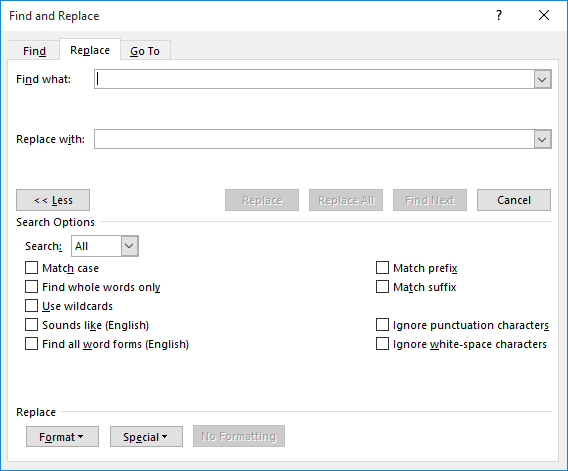
Figure 1. The Replace tab of the Find and Replace dialog box.
At this point you are ready to do the actual Find and Replace. Using wildcards, the Find What expression searches for any digit, followed by a hyphen, and followed by another digit. The characters in the Replace With box replace what was found with the first digit, an en dash, and the second digit. (The ^= sequence is the code for an en dash.)
At this point, you might be tempted to click Replace All. Be careful, though, because the hyphen can be correctly used in some places such as a telephone numbers, numeric dates, or URLs. You don't want to replace those, so it is best to simply step through each instance that is found and determine if the change should be made. Even in long documents this should not take that much time.
One other thing to keep in mind—if you are professionally editing, you may have Track Changes turned on. Before doing the Find and Replace, turn it off as it is not necessary to mark such changes. When you are done, you can once again enable Track Changes.
WordTips is your source for cost-effective Microsoft Word training. (Microsoft Word is the most popular word processing software in the world.) This tip (13971) applies to Microsoft Word 2007, 2010, 2013, 2016, 2019, 2021, 2024, and Word in Microsoft 365.

Discover the Power of Microsoft Office This beginner-friendly guide reveals the expert tips and strategies you need to skyrocket your productivity and use Office 365 like a pro. Mastering software like Word, Excel, and PowerPoint is essential to be more efficient and advance your career. Simple lessons guide you through every step, providing the knowledge you need to get started. Check out Microsoft Office 365 For Beginners today!
The Find and Replace capabilities of Word are very powerful, particularly if you are using wildcards in your search. ...
Discover MoreWhen you receive documents created by others, it is not unusual that you'll want to edit what they've written. For ...
Discover MoreFinding and replacing text when the text being searched for has mixed formatting can be a challenge. You may, however, ...
Discover MoreFREE SERVICE: Get tips like this every week in WordTips, a free productivity newsletter. Enter your address and click "Subscribe."
There are currently no comments for this tip. (Be the first to leave your comment—just use the simple form above!)
Got a version of Word that uses the ribbon interface (Word 2007 or later)? This site is for you! If you use an earlier version of Word, visit our WordTips site focusing on the menu interface.
Visit the WordTips channel on YouTube

FREE SERVICE: Get tips like this every week in WordTips, a free productivity newsletter. Enter your address and click "Subscribe."
Copyright © 2026 Sharon Parq Associates, Inc.

Comments