Converting Explicit Character Formatting to Styled Formatting

Written by Allen Wyatt (last updated March 19, 2026)
This tip applies to Word 2007, 2010, 2013, 2016, 2019, 2021, 2024, and Word in Microsoft 365


Pauline has a document where someone has gone through and explicitly formatted different words and phrases as bold red text. She is looking for the easiest way to convert all these words and phrases to use a character style (BoldRed) instead of the explicit formatting.

The question that Pauline asks presumes two things. First, that there are instances in her document where text has been formatted as both bold and red. Second, that Pauline has created a character style called BoldRed that implements the same formatting. With those two things in mind, the following steps can be used to convert the explicit formatting to styled formatting:
  1. Press Ctrl+H. Word displays the Replace tab of the Find and Replace dialog box.
  2. Click the More button, if it is available.
  3. Click the No Formatting button, if it is available.
  4. Make sure the insertion point is within the Find What box.
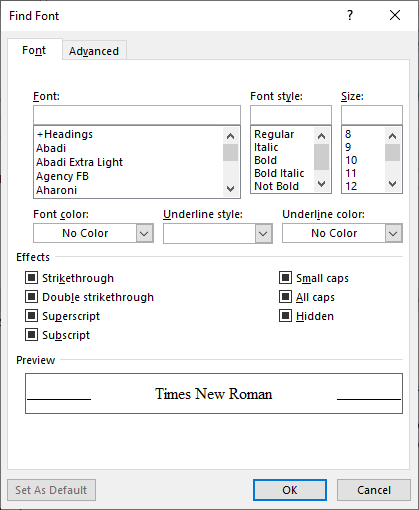
  5. Click the Format button and then click on Font. Word displays the Find Font dialog box. (See Figure 1.)
  6. Figure 1. The Find Font dialog box.

  7. In the Font Style list, click on Bold.
  8. Using the Font Color drop-down list, choose red.
  9. Click OK to close the Find Font dialog box. Your formatting specifications should appear just below the Find What box.
  10. Put the insertion point within the Replace With box.
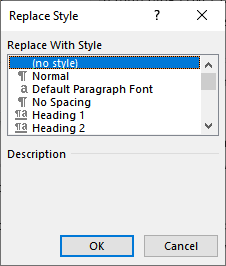
  11. Click the Format button and then click on Style. Word displays the Replace Style dialog box. (See Figure 2.)
  12. Figure 2. The Replace Style dialog box.

  13. In the list of styles, find the BoldRed style and click on it once.
  14. Click OK to close the Replace Style dialog box.
  15. Click Replace All. Word lets you know how many replacements were made.
  16. Close all the open dialog boxes.

If you are using Microsoft 365, there is another approach you can take:

  1. Display the Styles pane. (Display the Home tab of the ribbon and click the small icon at the bottom-right of the Style Gallery.)
  2. In your document, place the insertion point within one of the words already formatted with bold and red.
  3. On the Home tab of the ribbon, in the Select group choose the Select All Text with Similar Formatting tool. Word selects all the text that uses that same format.
  4. In the Styles pane, click the BoldRed style. It is applied to all the selected text.

Regardless of the approach you take, when you are done your bold and red text will be formatted using the BoldRed style.

WordTips is your source for cost-effective Microsoft Word training. (Microsoft Word is the most popular word processing software in the world.) This tip (13968) applies to Microsoft Word 2007, 2010, 2013, 2016, 2019, 2021, 2024, and Word in Microsoft 365.

Author Bio

Allen Wyatt

With more than 50 non-fiction books and numerous magazine articles to his credit, Allen Wyatt is an internationally recognized author. He is president of Sharon Parq Associates, a computer and publishing services company. ...

MORE FROM ALLEN

Removing Entire Paragraphs from Your Document

If you need to get rid of a lot of paragraphs in a document, it's easy to do as long as the document relies on styles for ...

Discover More

Creating Scenarios

Excel allows you to create different scenarios for the data in your worksheet. These can be saved and managed using the ...

Discover More

Inserting the User's Initials

One of the pieces of information tracked by Word are your name and initials. You can insert your initials by using the ...

Discover More

The First and Last Word on Word! Bestselling For Dummies author Dan Gookin puts his usual fun and friendly candor back to work to show you how to navigate Word 2019. Spend more time working and less time trying to figure it all out! Check out Word 2019 For Dummies today!

More WordTips (ribbon)

Printing Style Sheets

Want to see what styles are defined in your document? Let Word print out a simplistic style sheet for you.

Discover More

Stopping Styles from Changing with Multiple Users

Using styles in your documents can be very helpful when it comes to consistency and ease of formatting. When others open ...

Discover More

Preventing Changes to Styles in Documents

Have you ever created a template only to have the styles within it changed as they were used within a document? Here are ...

Discover More
Subscribe

FREE SERVICE: Get tips like this every week in WordTips, a free productivity newsletter. Enter your address and click "Subscribe."

View most recent newsletter.

Comments

If you would like to add an image to your comment (not an avatar, but an image to help in making the point of your comment), include the characters [{fig}] (all 7 characters, in the sequence shown) in your comment text. You’ll be prompted to upload your image when you submit the comment. Maximum image size is 6Mpixels. Images larger than 600px wide or 1000px tall will be reduced. Up to three images may be included in a comment. All images are subject to review. Commenting privileges may be curtailed if inappropriate images are posted.

What is six minus 4?

There are currently no comments for this tip. (Be the first to leave your comment—just use the simple form above!)


This Site

Got a version of Word that uses the ribbon interface (Word 2007 or later)? This site is for you! If you use an earlier version of Word, visit our WordTips site focusing on the menu interface.

Videos
Subscribe

FREE SERVICE: Get tips like this every week in WordTips, a free productivity newsletter. Enter your address and click "Subscribe."

(Your e-mail address is not shared with anyone, ever.)

View the most recent newsletter.