
When David creates a numbered list, Word defaults to left-aligning the numbers, then left-aligning the text that follows (and it always has). Once the number of items in the list goes to more than 9 items, the text is jammed against the numbers. If he goes above 99 items, it looks horrible. David can fix this one list at a time, but wonders if there is a way to change Word's default behavior to make the numbers in a numbered list right-align on the period after the number.
How Word handles numbered lists can be frustrating to many people. The default numbered lists, applied through the Numbering tool on the Home tab of the ribbon, behave exactly like David describes. If you want to change how numbering is formatted, then you need to define a new numbering format by following these steps:
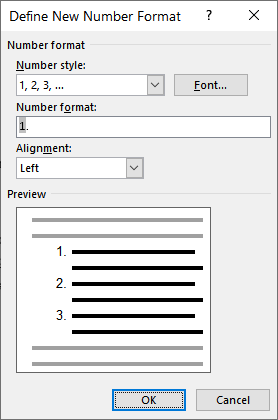
Figure 1. The Define New Number Format dialog box.
Your list should now have the numbers in the list right-aligned on the period. If you want to change the indenting used in the list, then you should do the following:
The adjustments to the alignment should now be applied whenever you use the number format you created earlier this tip.
WordTips is your source for cost-effective Microsoft Word training. (Microsoft Word is the most popular word processing software in the world.) This tip (13964) applies to Microsoft Word 2007, 2010, 2013, 2016, 2019, 2021, 2024, and Word in Microsoft 365.

Discover the Power of Microsoft Office This beginner-friendly guide reveals the expert tips and strategies you need to skyrocket your productivity and use Office 365 like a pro. Mastering software like Word, Excel, and PowerPoint is essential to be more efficient and advance your career. Simple lessons guide you through every step, providing the knowledge you need to get started. Check out Microsoft Office 365 For Beginners today!
The automatic numbering that Word lets you apply to paragraphs in your document can create some great looking content, ...
Discover MoreWant to customize your paragraph numbering in Word? There are a few tricks that can be used to automatically display the ...
Discover MoreWhen creating numbered lists, the normal characters that follow the number are a period and a tab. Here's how to force ...
Discover MoreFREE SERVICE: Get tips like this every week in WordTips, a free productivity newsletter. Enter your address and click "Subscribe."
There are currently no comments for this tip. (Be the first to leave your comment—just use the simple form above!)
Got a version of Word that uses the ribbon interface (Word 2007 or later)? This site is for you! If you use an earlier version of Word, visit our WordTips site focusing on the menu interface.
Visit the WordTips channel on YouTube

FREE SERVICE: Get tips like this every week in WordTips, a free productivity newsletter. Enter your address and click "Subscribe."
Copyright © 2026 Sharon Parq Associates, Inc.

Comments