
Please Note: This article is written for users of the following Microsoft Word versions: 2007, 2010, 2013, 2016, 2019, 2021, 2024, and Word in Microsoft 365. If you are using an earlier version (Word 2003 or earlier), this tip may not work for you. For a version of this tip written specifically for earlier versions of Word, click here: Displaying Quick Document Statistics.

Written by Allen Wyatt (last updated April 1, 2026)
This tip applies to Word 2007, 2010, 2013, 2016, 2019, 2021, 2024, and Word in Microsoft 365
Word tracks all sorts of information about your documents. If you know where to look, you can quickly display much of that information. For instance, if you want to quickly determine the number characters, words, lines, paragraphs, and pages in your document, you can display the Review tab of the ribbon and click the Word Count tool in the Proofing group. Word displays the Word Count dialog box, and quickly calculates the statistics about the document. (If you are working on a huge or complex document, the calculations may take a short amount of time.) (See Figure 1.)
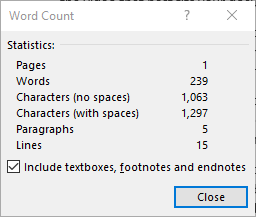
Figure 1. The Word Count dialog box.
Notice at the bottom of the dialog box is a check box that indicates whether Word should include information in the footnotes and endnotes in its calculations. You should select this option, as desired. When you are done viewing the statistics, click on the Close button.
WordTips is your source for cost-effective Microsoft Word training. (Microsoft Word is the most popular word processing software in the world.) This tip (12379) applies to Microsoft Word 2007, 2010, 2013, 2016, 2019, 2021, 2024, and Word in Microsoft 365. You can find a version of this tip for the older menu interface of Word here: Displaying Quick Document Statistics.

Do More in Less Time! An easy-to-understand guide to the more advanced features available in the Microsoft 365 version of Word. Enhance the quality of your documents and boost productivity in any field with this in-depth resource. Complete your Word-related tasks more efficiently as you unlock lesser-known tools and learn to quickly access the features you need. Check out Microsoft 365 Word For Professionals For Dummies today!
Some people, while developing documents, like to use the Highlighter tool quite a bit. It can quickly get monotonous, ...
Discover MoreImmersive Reader is a tool in Word that allows documents to be read out loud. If you want to record the audio as it is ...
Discover MoreWhen you instruct Word to tell you how many words are in a document, it treats hyphenated words or phrases as if they are ...
Discover MoreFREE SERVICE: Get tips like this every week in WordTips, a free productivity newsletter. Enter your address and click "Subscribe."
There are currently no comments for this tip. (Be the first to leave your comment—just use the simple form above!)
Got a version of Word that uses the ribbon interface (Word 2007 or later)? This site is for you! If you use an earlier version of Word, visit our WordTips site focusing on the menu interface.
Visit the WordTips channel on YouTube

FREE SERVICE: Get tips like this every week in WordTips, a free productivity newsletter. Enter your address and click "Subscribe."
Copyright © 2026 Sharon Parq Associates, Inc.
 Please Note:
This article is written for users of the following Microsoft Word versions: 2007, 2010, 2013, 2016, 2019, 2021, 2024, and Word in Microsoft 365. If you are using an earlier version (Word 2003 or earlier), this tip may not work for you. For a version of this tip written specifically for earlier versions of Word, click here:
Please Note:
This article is written for users of the following Microsoft Word versions: 2007, 2010, 2013, 2016, 2019, 2021, 2024, and Word in Microsoft 365. If you are using an earlier version (Word 2003 or earlier), this tip may not work for you. For a version of this tip written specifically for earlier versions of Word, click here:
Comments