

Written by Allen Wyatt (last updated May 18, 2024)
This tip applies to Word 2007, 2010, 2013, 2016, 2019, 2021, and Word in Microsoft 365
Victor used Word to create a book about his family. He wants to add a table of contents near the beginning of the document, but he can't get the table to include all the headings in the book. He wonders if there is something he's missing in creating the table of contents.
Before jumping into why some headings may not be included in the table of contents (TOC), let's very quickly go through the steps for how a TOC is added to a document. In the latest versions of Word, the steps are quite easy:
If you are using an older version of Word, then the steps are a bit different. These are the steps for Word 2016, but should be very similar to those for even older versions:
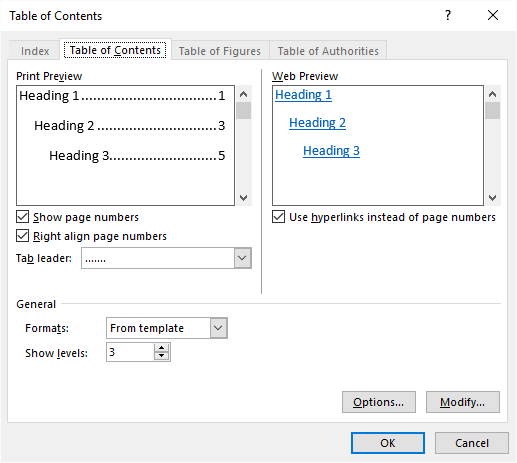
Figure 1. The Table of Contents tab of the Table of Contents dialog box.
That's it; the TOC is inserted in your document. Now, as to why some headings may not be in your table of contents. There are several possible reasons.
The first thing to check is how many heading levels you are using. Remember that there is a correlation between heading levels (using styles Heading 1, Heading 2, Heading 3, etc.) and table of contents entries (using styles TOC 1, TOC 2, TOC 3, etc.). By default, any TOC created by Word only pays attention to the first three heading levels. If you are using a deeper heading structure (perhaps including Heading 4 and Heading 5), then you need to create your TOC using a bit different approach. If you are using Word 2016 or older, follow the appropriate steps already mentioned, but before you click on OK (step 6), use the Show Levels control to specify how many heading levels you want included in the TOC.
If you are using the latest versions of Word, then you'll need to go through a bit of different process for your TOC:
Another thing to check is the formatting actually used for the headings. Since Word builds the table of contents based on heading styles, if there is a heading that is manually formatted but doesn't actually use a heading style, it won't appear in the table of contents. You can check this by figuring out which heading is missing from your TOC. Then, find that heading in your document and select it. Make sure it is formatted using a heading style—Heading 1, Heading 2, Heading 3, etc. Then, update your table of contents and it should be included.
Speaking of updating, that brings up another common reason for a heading not being in a TOC—the heading was added after the TOC was last updated. The easiest way to update the TOC is to right-click any entry within it and, from the resulting Context menu, choose Update Field. (A table of contents is generated in Word through the use of a field. Update the field, and you update the TOC.) You can also, if desired, display the References tab of the ribbon and, within the Table of Contents group, click the Update Table option.
Finally, check to see if your missing TOC headings are located within a table or a text box. In older versions of Word (say, 2016 or earlier) such headings are not included in the TOC. In the latest versions of Word this should not be an issue as all headings—including those in tables and text boxes—are reflected in the TOC.
WordTips is your source for cost-effective Microsoft Word training. (Microsoft Word is the most popular word processing software in the world.) This tip (13924) applies to Microsoft Word 2007, 2010, 2013, 2016, 2019, 2021, and Word in Microsoft 365.
Learning Made Easy! Quickly teach yourself how to format, publish, and share your content using Word 2021 or Microsoft 365. With Step by Step, you set the pace, building and practicing the skills you need, just when you need them! Check out Microsoft Word Step by Step today!
Word makes it easy to create a Table of Contents. If you want column headings in that table, getting them takes a bit of ...
Discover MoreIf you add a table of contents to your document, you may want to control the formatting of tabs and page numbers ...
Discover MoreWord allows you to create a table of contents that provides hyperlinks to headings within your document. It doesn't make ...
Discover MoreFREE SERVICE: Get tips like this every week in WordTips, a free productivity newsletter. Enter your address and click "Subscribe."
There are currently no comments for this tip. (Be the first to leave your comment—just use the simple form above!)
Got a version of Word that uses the ribbon interface (Word 2007 or later)? This site is for you! If you use an earlier version of Word, visit our WordTips site focusing on the menu interface.
Visit the WordTips channel on YouTube

FREE SERVICE: Get tips like this every week in WordTips, a free productivity newsletter. Enter your address and click "Subscribe."
Copyright © 2026 Sharon Parq Associates, Inc.
Comments